 by
Convert PDF to Word using AI and you skip the frustration of retyping a document from scratch or fighting with broken formatting in a free online converter. Modern AI-powered tools do not just extract text, they recognize headings, tables, columns, and even scanned handwriting well enough to rebuild a document that looks close to the original, ready to edit in Microsoft Word or Google Docs.
This matters because PDFs are meant to be read, not edited, so the moment you need to update a contract, tweak a resume, or pull data out of a scanned form, you need a converter that actually understands the document’s structure rather than dumping a wall of misaligned text.
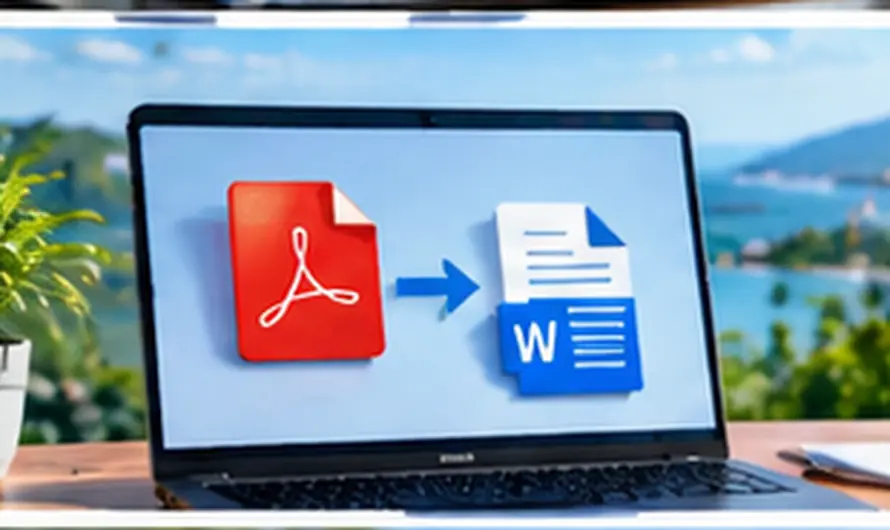
How to Convert PDF to Word Using AI
- Choose a tool based on your document type. A clean, text-based PDF converts well almost anywhere, but a scanned or image-based PDF needs a tool with AI-powered OCR (optical character recognition) to read the text accurately.
- Upload your file. Most AI PDF to Word converters work directly in the browser, so you simply drag and drop the file rather than installing software.
- Let the AI analyze the layout. This is the step that separates AI tools from basic converters, since the AI identifies headings, tables, columns, and images and maps them to equivalent Word formatting instead of just extracting raw text.
- Review the converted document. Even the best AI conversion can misread an unusual font or a tightly packed table, so scan through the output before you rely on it, especially for legal or financial documents.
- Download and edit in Word or Google Docs. Once you are satisfied with the layout, save the .docx file and make your edits directly rather than reconverting the original PDF.
Best AI Tools to Convert PDF to Word
- Adobe Acrobat offers advanced OCR with high accuracy for scanned documents and preserves complex tables and fonts, though it requires a paid subscription for full access.
- Kimi Docs uses AI-supported formatting consistency to preserve fonts, layout, and images automatically, and runs entirely in the browser with a free credit-based tier.
- CamScanner is a mobile-first option that combines OCR technology with direct scanning, useful when you are converting a physical document on the spot with your phone.
- Smallpdf and iLovePDF both offer fast, no-signup browser conversion with cloud storage integration, a solid choice for straightforward, non-scanned PDFs.
When Do You Actually Need AI, Not Just a Basic Converter?
A simple text-based PDF, like one exported directly from Word, converts accurately with almost any free tool since the underlying text data is already clean. AI-powered conversion earns its keep specifically with scanned documents, photographed pages, forms with checkboxes, or PDFs with multi-column layouts, where a basic converter tends to scramble the reading order or lose table structure entirely.
Tips for Cleaner Conversions
- Use the highest-resolution scan available if you are converting a photographed or scanned document, since AI OCR accuracy depends heavily on image clarity
- Convert one section at a time for very long or complex documents to make errors easier to spot and fix
- Keep a copy of the original PDF, since re-running a conversion with different settings is often faster than manually fixing a bad result
- Check tables and numbers especially carefully, since misread digits are one of the most common and easiest to miss AI conversion errors
If you regularly work with AI-powered apps for tasks like this, keeping your other tools running smoothly matters too. Our guide on fixing ChatGPT when it stops responding covers troubleshooting steps that apply to most browser-based AI tools when they suddenly stop loading. And if you edit images alongside your documents, see our roundup of the best AI photo editing apps for Android for a similar breakdown of free versus paid AI tools.
Common Problems and Fixes
The converted Word document has scrambled or reordered text.
This usually happens with multi-column PDFs or complex layouts. Try a different AI tool that specifically advertises layout or table recognition rather than a basic text extractor.
Scanned text came out full of typos and misread characters.
Poor scan quality is the most common cause. Rescan the document at a higher resolution, or try a tool with dedicated OCR rather than general text extraction.
Images or logos disappeared from the converted document.
Some converters strip images by default to prioritize editable text. Check the tool’s settings for an option to preserve or embed images before converting.
Frequently Asked Questions
Is it safe to convert PDF to Word using AI for confidential documents?
It depends on the tool. Check whether the service deletes uploaded files after conversion and avoid uploading highly sensitive documents to free tools without a clear privacy policy.
Can AI accurately convert a PDF with tables and columns?
Yes, this is where AI tools genuinely outperform basic converters, since they can recognize table structure and column boundaries rather than just reading text left to right.
Do I need to pay to convert PDF to Word using AI?
Not necessarily. Several tools offer a free tier with a limited number of conversions or file size caps, which is usually enough for occasional use, though paid plans unlock higher accuracy and batch processing.
Why does my converted document still need manual formatting fixes?
Even the best AI conversion is not perfect, especially with unusual fonts, handwriting, or low-quality scans, so a quick manual review is always worth doing before you consider the document final.
Choosing the right way to convert PDF to Word using AI comes down to what kind of document you are working with: a clean digital PDF converts well almost anywhere, while a scanned or complex document benefits from a tool built specifically around AI-powered OCR and layout recognition. Test a couple of free tools on your specific document type before committing to a paid plan.