
Is your laptop running slow even for simple tasks like opening a browser, typing a document or joining a video call? You are not alone. Over time, almost every laptop slows down because of too many startup programs, full storage, outdated software, overheating, malware or simply ageing hardware. The good news is that most of these problems can be fixed at home in under an hour, without spending money.
In this guide, we explain why a laptop running slow happens and share 15 easy fixes for Windows laptops, with notes for macOS users. We also cover hardware upgrades like SSD and RAM, maintenance habits and when it is time to replace your laptop.
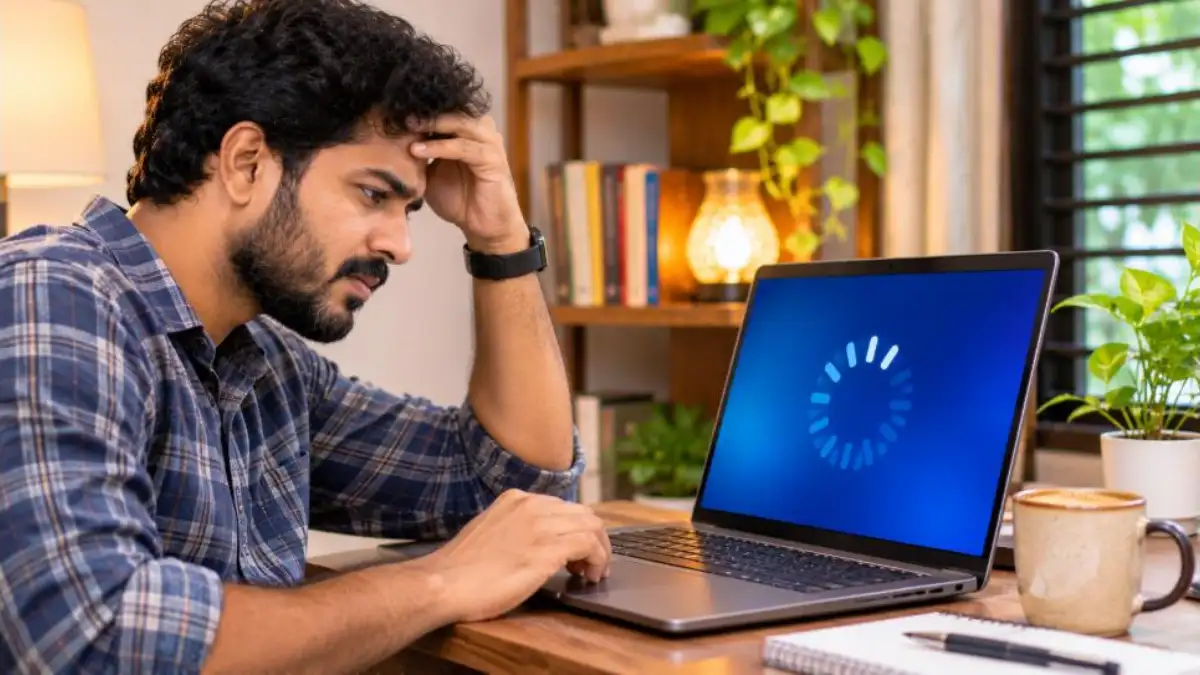
Why Is My Laptop Running Slow?
| Cause | Common Signs |
| Too many startup apps | Very slow boot; fans running high after startup |
| Low free storage | Warnings about disk space; slow file opening |
| Old hard disk (HDD) | Long loading times; disk usage at 100% in Task Manager |
| Not enough RAM | Slowdowns when many browser tabs or apps are open |
| Malware or adware | Pop-ups, unknown programs, browser redirects |
| Overheating | Hot base, loud fans, sudden slowdowns during heavy use |
| Pending or failed updates | Frequent update prompts; system instability |
| Power settings | Performance drops on battery; “Battery saver” always on |
Identifying the cause helps you choose the right fix instead of trying random solutions.
First Step: Check Task Manager
On Windows, press Ctrl + Shift + Esc to open Task Manager. Click the “Processes” tab and sort by CPU, Memory and Disk. If one app uses a very high percentage, it may be the reason your laptop is running slow. On a Mac, open Activity Monitor from Applications > Utilities and check the CPU and Memory tabs.
15 Easy Fixes for a Laptop Running Slow
1. Restart Your Laptop Properly
Many people only close the lid or use sleep mode for days. A full restart clears temporary memory, stops stuck processes and applies pending updates. Restart at least once every few days.
2. Disable Unnecessary Startup Programs
In Task Manager, open the “Startup apps” (or “Startup”) tab. Right-click programs you do not need immediately at startup, such as music players, game launchers or update helpers, and choose “Disable”. On a Mac, go to System Settings > General > Login Items. This is often the single biggest fix for a laptop running slow at boot.
3. Free Up Storage Space
When the system drive is almost full, Windows has little room for temporary files and updates. Aim to keep at least 15–20% of the drive free. Delete old downloads, move photos and videos to an external drive or cloud, and uninstall programs you no longer use. Our guide on the Windows storage full fix explains each step in detail.
4. Use Disk Cleanup and Storage Sense
Search for “Disk Cleanup” in the Start menu, select the C: drive and remove temporary files, system cache and old Windows update files. In Windows 10 and 11, you can also turn on Storage Sense in Settings > System > Storage to clean files automatically.
5. Uninstall Bloatware and Unused Apps
New laptops often come with trial software and pre-installed apps. Go to Settings > Apps > Installed apps, sort by size or install date and remove what you do not need. Fewer background apps mean more resources for the programs you actually use.
6. Limit Browser Tabs and Extensions
Modern browsers can use a lot of memory, especially with many tabs and extensions. Close tabs you are not using, remove unnecessary extensions and enable memory-saving features if your browser has them. If your laptop running slow problem appears mainly while browsing, this fix alone may solve it.
7. Scan for Malware
Run a full scan with Windows Security (Microsoft Defender) or your trusted antivirus. Remove any detected threats. Also check your browser for unknown extensions and reset browser settings if you see strange pop-ups or redirects.
8. Update Windows and Drivers
Go to Settings > Windows Update and install all pending updates, including optional driver updates. Updated graphics, chipset and storage drivers can improve performance and stability. Mac users should install updates from System Settings > General > Software Update.
9. Change Power Settings
On Windows, open Settings > System > Power and choose “Best performance” or “Balanced” when plugged in. Battery saver modes reduce performance to save power. If your laptop running slow only on battery, this is likely the reason.
10. Reduce Visual Effects
Search for “Adjust the appearance and performance of Windows”, open it and choose “Adjust for best performance” or disable selected animations. This helps older laptops with limited graphics power.
11. Check for Overheating
Dust buildup blocks air vents and causes the processor to slow down to protect itself (thermal throttling). Use the laptop on a hard, flat surface, not on beds or cushions. Clean vents gently with compressed air, or get the laptop cleaned at an authorised service centre. A cooling pad can also help.
12. Turn Off Background Sync Temporarily
Cloud services like OneDrive, Google Drive and Dropbox constantly sync files. If you are working on something important and your laptop is running slow, pause sync temporarily and resume it later.
13. Run Disk Check and Optimise Drives
For traditional hard disks (HDD), search for “Defragment and Optimize Drives” and run optimisation. For SSDs, Windows performs TRIM automatically; you do not need to defragment. You can also run “chkdsk” from an administrator command prompt to check for disk errors.
14. Reset Windows (Keep Files)
If nothing else works, use Settings > System > Recovery > Reset this PC and choose “Keep my files”. This reinstalls Windows while keeping personal files, but you will need to reinstall apps. Always back up important data before a reset.
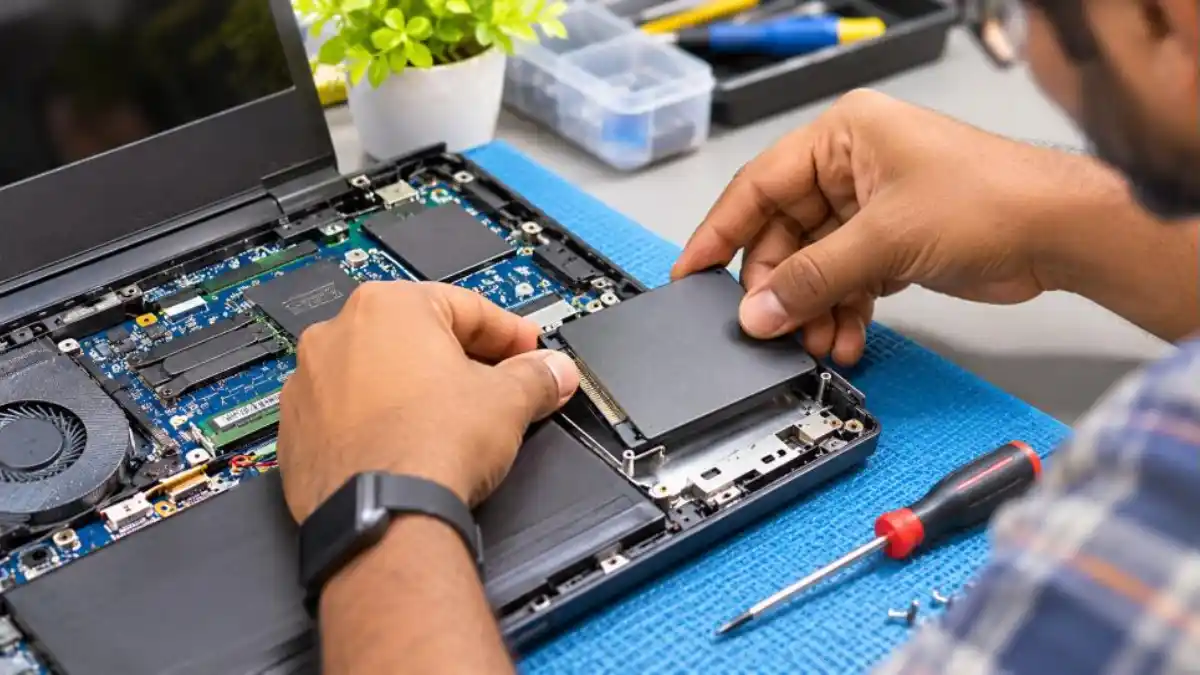
15. Upgrade to an SSD or Add More RAM
If your laptop still uses a hard disk drive, upgrading to a solid-state drive (SSD) is the most dramatic improvement you can make. Boot times can drop from minutes to seconds. Adding RAM, for example from 4 GB to 8 GB or 16 GB, helps if you run many apps or browser tabs. Check your laptop model’s specifications first, because some laptops have RAM soldered to the motherboard.
SSD vs HDD: Why the Upgrade Matters
| Feature | HDD | SSD |
| Speed | Slow, mechanical spinning disk | Very fast, no moving parts |
| Boot time | Often 1–3 minutes on older laptops | Often under 30 seconds |
| Durability | Sensitive to drops | More resistant to shocks |
| Noise and heat | Some noise and heat | Silent and cooler |
| Cost per GB | Lower | Higher, but prices have fallen |
If your laptop running slow problem is mainly long boot and loading times, an SSD upgrade usually gives the biggest improvement for the money. Clone your existing drive or do a fresh Windows installation, and keep your data backed up.
How Much RAM Do You Need?
| Usage | Recommended RAM |
| Basic browsing, documents, online classes | 8 GB |
| Heavy multitasking, many browser tabs, office work | 16 GB |
| Photo/video editing, programming, virtual machines | 16–32 GB |
Laptops with only 4 GB of RAM often struggle with modern Windows and browsers. Upgrading to at least 8 GB can make a big difference if your model supports it.
Laptop Running Slow on macOS
Mac users can follow similar steps: remove login items, free up storage via System Settings > General > Storage, close heavy apps in Activity Monitor, update macOS, and restart regularly. Avoid “cleaner” apps from unknown developers; macOS manages most caches automatically.

Daily Habits to Keep Your Laptop Fast
- Shut down or restart at least a few times a week.
- Keep at least 15–20% of your main drive free.
- Install software only from trusted sources.
- Keep Windows, drivers and apps updated.
- Avoid using the laptop on soft surfaces that block vents.
- Close apps and tabs you are not using.
- Run a security scan regularly.
- Back up important files to an external drive or cloud.
When Is It Time to Replace Your Laptop?
If your laptop is very old, has a slow processor, cannot be upgraded and still runs slowly after all fixes, replacement may be the best choice. Signs include: the laptop no longer receives operating system updates, the battery lasts only minutes, hardware parts are failing, or the cost of repairs is close to the price of a new laptop. Students looking for affordable options can read our article on laptops for students on EMI.
Laptop Running Slow After an Update?
Sometimes a laptop slows down right after a major Windows update. This is often temporary, as Windows indexes files and completes background tasks. Leave the laptop on and connected to power for an hour. If the problem continues, check for driver updates or roll back the update from Settings > Windows Update > Update history > Uninstall updates.
Laptop Running Slow While Gaming or Editing
Games and video editing need strong graphics and processing power. If your laptop running slow only during these tasks, check that the dedicated graphics card (if available) is being used, update graphics drivers, plug in the charger and choose the high-performance power mode. Lower in-game graphics settings or editing preview quality can also help. Remember that thin, budget laptops are not designed for heavy gaming, so expectations should match the hardware.
Laptop Running Slow on Wi-Fi or Online Classes
Sometimes the problem is not the laptop but the internet connection. Slow video calls, buffering and lag in online classes may be caused by weak Wi-Fi signals or limited bandwidth. Move closer to the router, close other devices’ heavy downloads, or use a wired connection where possible. Run a speed test to check. If the internet is fine but the laptop running slow during calls, close other apps and browser tabs to free memory for the video app.
Safe Tools vs Risky “Speed Booster” Apps
Many websites promote “PC booster” or “RAM cleaner” software that promises instant speed. Some of these programs add adware, show fake warnings or even install malware. Windows already includes Task Manager, Disk Cleanup, Storage Sense and Windows Security, which handle most needs. If your laptop running slow, use these built-in tools first and install third-party software only from well-known, trusted developers.
Backup Before Major Changes
Before resetting Windows, upgrading storage or making major changes, back up important documents, photos and projects to an external drive or cloud storage. Hardware upgrades are usually safe when done correctly, but a backup protects you from accidental data loss.
Quick Diagnosis Table
| Symptom | Most Likely Fix |
| Slow startup only | Disable startup apps; upgrade to SSD |
| Slow with many tabs open | Close tabs; add RAM; use browser memory saver |
| Slow and hot | Clean vents; use on a hard surface; check fan |
| Slow with pop-ups | Malware scan; remove unknown extensions |
| Slow on battery only | Change power mode; check battery health |
| Slow after update | Wait for background tasks; update drivers; roll back if needed |
| Disk at 100% constantly | Check disk health; upgrade HDD to SSD |
Example: Fixing a Student’s Slow Laptop
Akhil, an engineering student in Thrissur, complained that his three-year-old laptop took nearly three minutes to start and froze during online classes. Task Manager showed disk usage at 100% and more than 15 apps launching at startup. He disabled unnecessary startup apps, removed two trial antivirus programs, freed 40 GB of space and updated drivers. Boot time improved, but disk usage stayed high. Finally, he replaced the hard disk with an affordable SSD. His laptop now boots in under 30 seconds and handles classes smoothly. His experience shows that combining software fixes with one smart upgrade can solve a laptop running slow problem for a fraction of the cost of a new laptop.
Keep Your Phone Fast Too
Many of the same principles apply to smartphones: free storage, remove unused apps and keep software updated. Read our guides on fixing phone storage full problems and phone battery draining fast for step-by-step help.
Laptop Running Slow Checklist
- Restart the laptop.
- Check Task Manager for heavy processes.
- Disable unnecessary startup apps.
- Free up at least 15–20% storage.
- Uninstall unused programs and extensions.
- Run a full malware scan.
- Install Windows and driver updates.
- Set the right power mode.
- Clean vents and avoid overheating.
- Consider an SSD or RAM upgrade.
Work through this list in order. Most people find their laptop running slow issue solved within the first five steps.
Service Centre or DIY?
Software fixes are safe to do yourself. Hardware tasks like opening the laptop, cleaning fans or installing SSDs require care. If your laptop is under warranty, opening it yourself may void the warranty, so use an authorised service centre. For older laptops out of warranty, a trusted local technician can usually do the job quickly and affordably.
Check Your Hard Disk and Battery Health
An ageing hard disk can cause freezes, slow file access and even data loss. On Windows, you can check basic drive health using the manufacturer’s diagnostic tools or by looking for warning signs such as clicking noises, frequent errors or very slow file copying. If you notice these signs, back up your data immediately and plan a replacement.
Battery health also affects performance on some laptops. When the battery is weak, the system may limit processor speed to avoid sudden shutdowns. Windows users can generate a battery report by running the command powercfg /batteryreport in Command Prompt, which shows design capacity and current full-charge capacity. If capacity has dropped a lot, replacing the battery can restore normal performance on battery power.
Keeping an eye on these two components helps you catch hardware problems early, before they turn into expensive repairs or data loss.
Frequently Asked Questions
Why is my laptop running slow suddenly?
Sudden slowness is often caused by a background update, a new program at startup, malware, full storage or overheating. Check Task Manager to see which process is using resources.
Does deleting files make a laptop faster?
Freeing space helps when the drive is nearly full, because Windows needs room for temporary files and updates. It does not help much if you already have plenty of free space.
Is an SSD upgrade worth it?
Yes, for laptops with hard disks. An SSD upgrade is usually the most effective way to fix slow boot and loading times.
Will resetting Windows delete my files?
The “Keep my files” option keeps personal files but removes installed apps. Always back up data before resetting.
How often should I clean my laptop’s vents?
Check every few months, especially in dusty environments. If fans are loud or the laptop gets very hot, cleaning may be needed sooner.
Can a virus make my laptop slow?
Yes. Malware can use CPU, memory and internet bandwidth in the background. Run a full scan with trusted security software.
Conclusion
A laptop running slow is frustrating, but it is usually fixable. Start with simple steps like restarting, disabling startup apps, freeing storage and scanning for malware. Then update software, adjust power settings and check for overheating. If your laptop still uses a hard disk or has very little RAM, a small hardware upgrade can transform its performance. With regular maintenance and good habits, you can keep your laptop fast for years and avoid the stress of a laptop running slow at important moments. For official Windows performance tips, visit Microsoft Support.