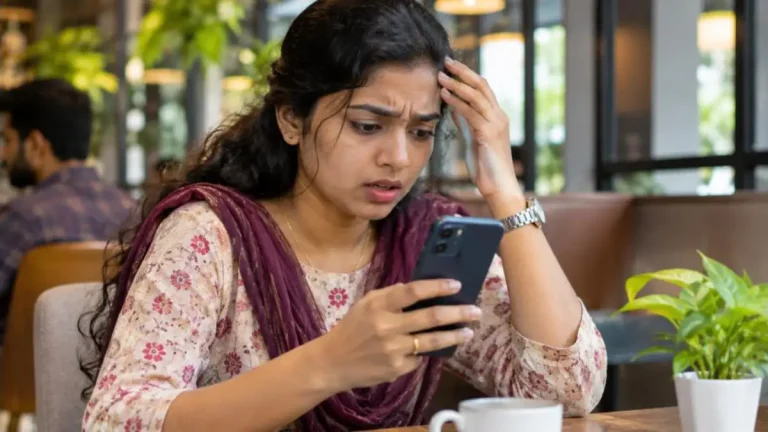
Is your inbox full of promotions, fake lottery messages, phishing links and newsletters you never signed up for? Spam wastes time and can be dangerous. The good news is that you can stop spam emails in Gmail and most email services with a few smart settings: reporting spam, unsubscribing, blocking senders, creating filters and protecting your email address.
This guide explains how to stop spam emails step by step in Gmail on phone and computer, how to identify phishing, and habits that keep your inbox clean for good.

Stop Spam Emails: Quick Methods
| Method | Best for |
|---|---|
| Report spam | Unwanted bulk or suspicious emails |
| Unsubscribe | Genuine newsletters and promotions you no longer want |
| Block sender | Repeated emails from a specific address |
| Filters | Automatically deleting or archiving certain emails |
| Report phishing | Fake bank, courier or prize emails asking for details |
| Email aliases | Signing up for websites without exposing your main address |
How to Report Spam in Gmail
On phone
- Open the email in the Gmail app.
- Tap the three dots at the top right.
- Tap Report spam.
On computer
- Select the email(s) using the checkbox.
- Click the Report spam icon (exclamation mark).
Reporting trains Gmail’s filters, so similar emails go to the Spam folder automatically in future. This is the simplest way to stop spam emails over time.
How to Unsubscribe From Newsletters
Gmail shows an Unsubscribe link next to the sender’s name for many bulk emails. Tap it and confirm. For trusted brands, unsubscribing is safer than reporting spam. Avoid clicking unsubscribe links inside suspicious emails, because scammers use them to confirm active addresses; report those as spam instead.
Gmail also offers a “Manage subscriptions” view in some regions and app versions, listing senders you receive regular emails from so you can unsubscribe in bulk.
How to Block a Sender
- Open an email from the sender.
- Tap or click the three dots.
- Choose Block “sender name”.
Future messages from that address go directly to Spam. You can unblock senders later from Gmail settings.

Create Filters to Stop Spam Emails Automatically
Filters let Gmail sort emails for you. To create one on a computer:
- Click the filter icon in the Gmail search bar.
- Enter the sender address, domain or words that appear in unwanted emails (for example, “lottery” or a specific promotional domain).
- Click Create filter.
- Choose actions like Delete it, Skip the Inbox (Archive it) or Mark as read.
- Click Create filter again.
Filters are powerful for stopping repeated emails from the same companies or with similar subject lines.
Use Gmail Tabs
Gmail’s Primary, Promotions, Social and Updates tabs automatically separate marketing emails from personal ones. Turn them on in Settings > Inbox type > Default. Even if promotions keep coming, they will not clutter your main inbox.
How to Spot Phishing Emails
Some spam is not just annoying but dangerous. Phishing emails pretend to be from banks, courier companies, tax departments, job portals or even friends, and try to steal passwords or money. Warning signs:
- Urgent language: “Your account will be blocked today”.
- Sender address that does not match the official domain.
- Links to unfamiliar websites or shortened URLs.
- Requests for OTP, PIN, password or card details.
- Unexpected attachments, especially ZIP, APK or EXE files.
- Prize, lottery or refund offers you never applied for.
- Poor grammar and generic greetings like “Dear Customer”.
Use Report phishing from the three-dot menu in Gmail for such emails. Never click links or download attachments from them.
Why Am I Getting So Much Spam?
- Your email was used to sign up on many websites, apps and contests.
- A website you used had a data breach.
- Your email is visible publicly on social media or websites.
- You replied to or clicked links in earlier spam emails.
Understanding the cause helps you stop spam emails at the source rather than just deleting them.
Use Email Aliases and Separate Addresses
Gmail supports “plus addressing”: add +something to your username (for example, yourname+shopping@gmail.com). Emails still reach you, and you can filter or block that alias if it starts receiving spam. Many people also keep a separate email address only for shopping, contests and app sign-ups, keeping their main address for banking and personal communication.
Stop Spam Emails in Outlook and Yahoo
- Outlook: Select the email > Report > Report junk or Report phishing. Use Block sender and set Junk email filters in settings.
- Yahoo Mail: Select the email > Spam. Use Block senders in Settings > Security and privacy.
The principles are the same everywhere: report, block, unsubscribe from genuine senders and use filters.
Protect Your Email Address
- Do not post your email openly on social media or public forums.
- Read sign-up forms carefully and untick marketing consent boxes.
- Avoid entering your email in free contests and unknown apps.
- Use a secondary email for one-time registrations.
- Check if your email appeared in known data breaches using trusted breach-check services, and change passwords if needed.
Secure Your Email Account
Spam sometimes increases after an account compromise, when attackers use your account to send messages. Protect your account by enabling 2-Step Verification, using a strong unique password and reviewing devices signed in to your Google account. If you suspect a hack, change the password immediately and check forwarding rules and filters for anything you did not create.

Step-by-Step Inbox Cleanup Plan
- Search for “unsubscribe” in Gmail to find newsletters; unsubscribe from those you do not read.
- Report obvious spam and phishing.
- Block the top repeat senders.
- Create filters for recurring promotions you do not want to unsubscribe from but rarely read.
- Turn on Gmail category tabs.
- Delete old promotions in bulk to free storage.
- Repeat a short cleanup every month.
Following this plan helps you stop spam emails and keeps your inbox manageable.
Stop Spam Emails on Your Phone
Most people read email on their phone, so it helps to manage spam there too. In the Gmail app, long-press an email to select it, then tap the three dots and choose Report spam or Block. To unsubscribe, open the email and tap Unsubscribe near the sender’s name. You can also turn off notifications for Promotions and Social tabs so that only important emails alert you.
Stop Spam Emails From Job Portals and Shopping Sites
Job portals, e-commerce sites and banks often send many marketing emails. Instead of reporting them as spam (which may also hide important order or transaction emails), log in to the website and change email preferences in account settings. Keep transactional alerts on and switch off marketing emails. This is a polite and effective way to stop spam emails from genuine businesses.
Common Email Scams in India
| Scam | What it says | What to do |
|---|---|---|
| KYC update scam | “Update your bank KYC or account will be blocked” | Ignore; contact bank via official app or branch |
| Courier/customs scam | “Parcel held, pay fee” | Check tracking on official courier site only |
| Income tax refund scam | “Claim your refund now” | Use only the official income tax portal |
| Job offer scam | “Selected for job, pay registration fee” | Genuine employers do not charge fees |
| Lottery/prize scam | “You won, pay processing charge” | Delete and report |
| Fake invoice scam | “Your subscription renewed, call to cancel” | Do not call numbers in the email; check your account directly |
Reporting such emails as phishing helps protect others too. Learn more about online fraud in our guides on digital arrest scam and UPI fraud complaint.
Free Up Gmail Storage While Cleaning Spam
Spam and promotions also eat into your 15 GB of free Google storage shared with Drive and Photos. After you stop spam emails, delete old promotions and large attachments. Search “larger:10M” in Gmail to find big emails. Empty the Spam and Trash folders. Read our Google Photos storage full fix for more ways to free space.
Teach Family Members
Elderly parents and children are common targets of phishing. Show them how to identify suspicious emails, never to share OTPs or passwords, and to ask you before clicking unknown links. A simple rule works well: if an email asks for money or personal details urgently, it is probably a scam.

Real Example
Ravi was receiving more than 100 promotional emails a day. He spent 20 minutes unsubscribing from newsletters he never read, reported fake prize emails as phishing, blocked five repeat senders and created a filter to archive emails from a shopping site he rarely used. Within a week, his inbox had only important emails, and he could finally stop spam emails from distracting him at work.
Advanced Gmail Filter Examples
| Goal | Filter rule | Action |
|---|---|---|
| Remove contest and lottery spam | Has the words: lottery OR “you have won” | Delete it |
| Archive a shop’s promotions | From: offers@shopdomain | Skip the inbox |
| Catch emails sent to an alias | To: yourname+apps@gmail.com | Apply label “Apps” |
| Mark newsletters as read | Has the words: unsubscribe | Mark as read, apply label |
Combining filters with reporting is the most reliable way to stop spam emails that slip past Gmail’s built-in protection.
Check Forwarding and Filters for Hacks
If spam suddenly increases or friends receive strange emails from you, your account might be compromised. In Gmail settings, check Forwarding and POP/IMAP and Filters and Blocked Addresses for anything you did not set up. Remove unknown forwarding addresses and filters, change your password and enable 2-Step Verification immediately.
Email Habits That Keep Spam Away
- Think twice before entering your email on any website.
- Avoid “sign up to view” pages from unknown sources.
- Do not reply to spam, even to say “stop”.
- Turn off image auto-loading if you want extra privacy from tracking pixels.
- Use separate emails for work, personal and shopping.
- Review app connections that have access to your Gmail.
Business and Work Email
For office emails, follow your company’s IT policies. Report phishing to your IT team using the provided button or address, and never forward suspicious emails to colleagues. Many organisations run phishing awareness programmes; participating helps you recognise threats faster.
Official Help and Reporting
For more details, see Google’s official guide to blocking and reporting emails in Gmail. If you lose money through an email scam, report it immediately on India’s National Cyber Crime Reporting Portal or call 1930. Quick reporting improves the chances of freezing fraudulent transactions.
Stop Spam Emails: Weekly Five-Minute Routine
- Open the Promotions tab and unsubscribe from one or two senders you never read.
- Report any new spam that reached your Primary inbox.
- Check the Spam folder briefly for any genuine emails wrongly marked; mark them “Not spam”.
- Empty Spam and Trash to save storage.
- Review one filter or blocked address to keep rules up to date.
Five minutes a week is enough to stop spam emails from piling up again.
What If Genuine Emails Go to Spam?
Sometimes Gmail filters important emails like OTPs, job interview invites or bank statements into Spam. Open the email and tap “Report not spam”. Add important senders to your contacts and create a filter with “Never send it to Spam” for addresses you trust. Check the Spam folder occasionally when you are expecting important mail.
Spam Emails and Mental Load
An overflowing inbox is not just a technical problem; it adds stress and makes it easy to miss important messages from family, employers or schools. Studies of workplace productivity often highlight email overload as a major distraction. When you stop spam emails and reduce unwanted promotions, you spend less time sorting and more time on what matters. Many people find that a clean inbox makes them feel more in control of their day.
Using Labels and Priority Inbox
Gmail’s labels and Priority Inbox help highlight important messages. Create labels like Bank, Work, Family and Bills, and use filters to apply them automatically. Priority Inbox learns which emails you open and reply to, showing them at the top. Together with spam controls, these features turn Gmail into an organised workspace instead of a cluttered mailbox.
Final Thoughts
Spam will never disappear entirely, but you can control how much of it reaches you. Report what you do not want, unsubscribe from what you no longer read, block repeat offenders, filter the rest and protect your address from unnecessary exposure. Stay alert to phishing, keep your account secure and teach your family the same habits. With these simple steps, your inbox becomes safer, cleaner and far more useful every day.
Start with one small step today: open your inbox, unsubscribe from three newsletters you never read and report any obvious spam. You will notice the difference within days, and building on that habit will help you stop spam emails for good while keeping important messages easy to find and act on.
Share this guide with friends, colleagues and family members who struggle with crowded inboxes, so they can enjoy a calmer and safer email experience too.
Happy, clutter-free emailing!
Remember that good email habits protect your time, your money and your personal information every single day.
Stay safe online and keep learning.
Thank you for reading this guide.
Frequently Asked Questions
Does reporting spam really help?
Yes. Reporting trains Gmail’s filters to catch similar emails in future.
Is it safe to click Unsubscribe?
For genuine companies, yes. For suspicious emails, do not click links; report them as spam or phishing instead.
Can I stop spam emails completely?
Not completely, but reporting, blocking, filters and careful sharing of your email reduce spam significantly.
Why do spam emails come from my own address?
Spammers can fake the “From” address. If Gmail shows warnings, report it and secure your account by changing your password.
What should I do if I clicked a phishing link?
Change your password immediately, enable 2-Step Verification, check bank accounts and report to the cybercrime helpline 1930 if money was involved.
Conclusion
You can stop spam emails by reporting spam, unsubscribing from genuine newsletters, blocking repeat senders, creating filters and protecting your email address. Watch out for phishing, secure your account with 2-Step Verification, and do a quick monthly cleanup to keep your inbox clean, safe and stress-free.