Seeing a “Storage space running out” warning again? When your phone storage full message appears, apps crash, photos fail to save, WhatsApp stops downloading media and updates refuse to install. The good news is that you can free several GB in 15 minutes without losing important files.
This guide gives 12 easy, tested fixes for a phone storage full problem on Android and iPhone, explains what “Other” or “System” storage really is, and shows how to stop the problem from coming back.

Phone Storage Full: Quick Fix Summary
| Fix | Space you can free | Time |
|---|---|---|
| Clear WhatsApp media | 1–10 GB | 5 min |
| Back up and delete photos/videos | 2–30 GB | 10 min |
| Delete unused apps | 1–5 GB | 5 min |
| Clear app cache | 0.5–3 GB | 3 min |
| Empty Downloads folder | 0.5–5 GB | 3 min |
| Remove offline videos and music | 1–10 GB | 3 min |
Why Does Phone Storage Get Full So Fast?
- WhatsApp and Telegram media: Photos, videos, voice notes and forwards from groups are saved automatically.
- High-resolution camera: Modern 50MP and 4K video files are large.
- App cache: Instagram, YouTube, Chrome and games store temporary data that grows over time.
- Offline downloads: Netflix, YouTube, Spotify and Prime downloads.
- Duplicate files: Same photo saved by several apps.
- System updates: The operating system itself grows with each update.
How to Check What Is Using Your Storage
Before deleting anything, find the biggest culprits.
- Android: Settings > Storage (or Settings > Battery and device care > Storage on Samsung). You will see categories like Images, Videos, Apps, Audio, Documents and System.
- iPhone: Settings > General > iPhone Storage. Apps are listed by size, with suggestions at the top.
- Files by Google: The Clean tab shows junk files, duplicates, large files and old screenshots.
12 Easy Fixes for Phone Storage Full
1. Clean up WhatsApp storage
WhatsApp is the number one reason for a phone storage full warning in India. Open WhatsApp > Settings > Storage and data > Manage storage. Review “Larger than 5 MB” and “Forwarded many times”, then delete. Open big group chats and remove old videos.
Next, go to Storage and data > Media auto-download and set mobile data, Wi-Fi and roaming to “No media” or only photos. This stops new junk from piling up.
2. Back up photos and videos, then delete from phone
Use Google Photos, OneDrive or iCloud to back up. After backup, use “Free up space” in Google Photos to remove device copies that are already safely backed up. If your Google storage is also full, read our guide on Google Photos storage full fix.
You can also copy photos to a laptop or pen drive using a USB cable before deleting.
3. Uninstall apps you do not use
Go through your app list. Remove old games, shopping apps you used once and duplicate apps. On Android, Files by Google shows “Unused apps”. On iPhone, turn on Offload Unused Apps, which removes the app but keeps its data.
4. Clear app cache
On Android, go to Settings > Apps > select an app > Storage > Clear cache. Do this for Instagram, Facebook, YouTube, Chrome, Snapchat and games. Do not tap “Clear data” unless you want to reset the app.
On iPhone, there is no global cache button; deleting and reinstalling a heavy app like Instagram clears its cache.
5. Empty the Downloads folder
Old PDFs, APK files, wallpapers and videos collect in Downloads. Open the Files app, go to Downloads, sort by size and delete what you do not need.
6. Remove offline videos and music
Open YouTube, Netflix, Prime Video, Spotify and similar apps and delete downloads you have already watched or heard.
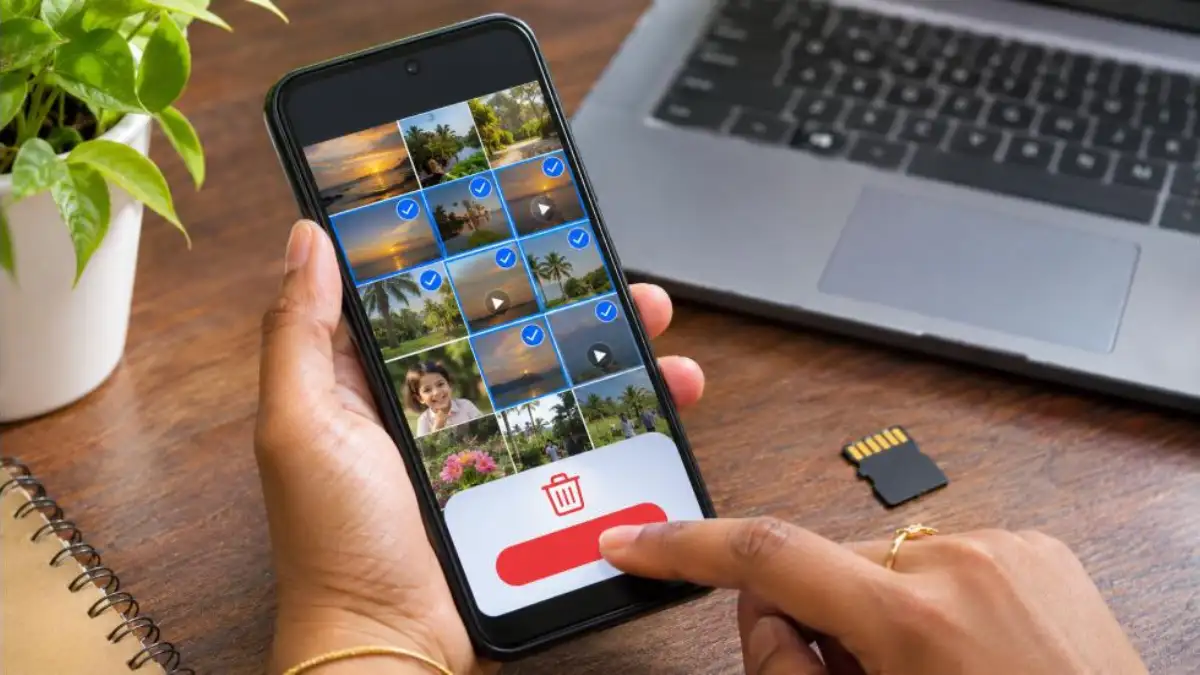
7. Delete old screenshots and duplicates
Screenshots of payments, memes and chats add up fast. Files by Google and most gallery apps can find duplicates and blurry photos. Review and delete in bulk.
8. Move files to a microSD card
If your Android phone has a memory card slot, move photos, videos and music to the SD card. In the Camera settings, set the storage location to the SD card so new photos go there.
9. Use lighter app versions
Apps like Facebook Lite, Messenger Lite (where available), Google Go and Maps Go take far less space. Using the browser version of rarely used apps also helps.
10. Clear Chrome and browser data
Chrome > Settings > Privacy and security > Clear browsing data. Choose “Cached images and files”. Keep passwords unchecked if you rely on them.
11. Clean up Telegram and other messaging apps
Telegram > Settings > Data and storage > Storage usage. Set “Keep media” to 1 week and clear the cache. Do the same for Signal or other apps you use.
12. Restart and update your phone
A restart clears temporary files. A system update may also fix storage bugs. After freeing space, restart once more.
What Is “Other” or “System” Storage?
Many users see a large “Other” or “System data” section when their phone storage full warning appears.

- System: The Android or iOS operating system and preloaded apps. You cannot delete this.
- Other / System data: Caches, logs, temporary files and app data that do not fit other categories.
To shrink “Other”, clear caches of big apps, delete and reinstall heavy apps, and restart. On iPhone, System Data often reduces by itself after a restart or update. If it remains huge, back up and reset as a last option.
Phone Storage Full on Samsung, Redmi, Vivo and Oppo
| Brand | Built-in cleaner path |
|---|---|
| Samsung | Settings > Battery and device care > Storage |
| Redmi / Xiaomi / POCO | Security app > Cleaner, or Settings > About phone > Storage |
| Vivo / iQOO | iManager > Space cleanup |
| Oppo / Realme / OnePlus | Phone Manager > Clean up storage, or Settings > Storage |
| Motorola / Pixel | Files by Google > Clean |
Use the built-in cleaner rather than third-party “cleaner” apps, which often show ads and collect data.
Does Phone Storage Full Slow Down the Phone?
Yes. When the phone storage full level crosses about 90%, the phone has less room for temporary files and updates, so apps open slowly and the phone may hang. Keeping at least 15–20% free helps performance. If your phone also lags, see our guide on phone hanging problem.
Phone Storage Full on iPhone: Special Tips
- Turn on Optimise iPhone Storage in Settings > Photos to keep smaller versions on the phone and full versions in iCloud.
- Delete the Recently Deleted album in Photos; deleted items stay there for 30 days and still use space.
- In Messages, set Keep Messages to 1 year and review large attachments.
- Offload unused apps automatically.
- Check Podcasts and Apple Music downloads.
How to Stop Phone Storage Full Problems in Future
- Turn off WhatsApp media auto-download for groups.
- Turn on automatic cloud backup of photos.
- Set Telegram “Keep media” to 1 week.
- Do a monthly 10-minute clean-up using Files by Google or iPhone Storage.
- Record videos in 1080p instead of 4K unless needed.
- Buy a phone with at least 128 GB if you shoot a lot of video.
- Avoid saving every forward; star only important messages.

Mistakes to Avoid
- Do not tap “Clear data” for WhatsApp; it deletes your chats unless backed up.
- Do not install random cleaner or booster apps with lots of ads.
- Do not delete unknown system folders using file managers.
- Do not factory reset without a full backup.
- Do not delete photos before confirming the backup is complete.
Phone Storage Full: Step-by-Step 15-Minute Clean-Up Plan
If you want a simple routine, follow this plan the next time a phone storage full alert appears. It works on almost every Android phone and iPhone.
| Minutes | Task |
|---|---|
| 0–2 | Open Storage settings and note the biggest categories |
| 2–6 | WhatsApp > Manage storage > delete large and forwarded files |
| 6–9 | Google Photos or iCloud: confirm backup, then free up device copies |
| 9–11 | Uninstall three apps you have not opened in a month |
| 11–13 | Clear cache of Instagram, YouTube and Chrome |
| 13–15 | Empty Downloads, Trash and Recently Deleted; restart |
How Much Space Do Popular Apps Use?
App sizes vary by phone and usage, but heavy users often see these ranges. Knowing them helps you spot the apps that cause a phone storage full problem.
| App | Typical size with data | Main reason |
|---|---|---|
| 2–20 GB | Group photos, videos, voice notes | |
| 0.5–3 GB | Cache of reels and stories | |
| YouTube | 0.3–10 GB | Offline downloads and cache |
| Games (BGMI, Free Fire etc.) | 2–6 GB each | Game resources and updates |
| Chrome | 0.3–2 GB | Browsing cache |
| Telegram | 0.5–15 GB | Channel media cache |
Phone Storage Full but Nothing to Delete?
Some people say their phone storage full warning appears even though they have few photos and apps. Common hidden causes:
- WhatsApp “Sent” folders: Files you sent are saved separately. Check Internal storage > Android > media > com.whatsapp > WhatsApp > Media > Sent folders.
- Thumbnails: The .thumbnails folder in DCIM can grow large. Deleting it is safe; the phone recreates small previews.
- Old system update files: Some phones keep downloaded update packages. A restart after updating often removes them.
- Call recordings: Auto call recording can quietly use several GB.
- Screen recordings: Long recordings are very large.
- Hidden or secure folders: Samsung Secure Folder and gallery “hidden” albums still use space.
Cloud Storage Options Compared
| Service | Free storage | Best for |
|---|---|---|
| Google One (Photos, Drive, Gmail) | 15 GB shared | Android users |
| iCloud | 5 GB | iPhone users |
| Microsoft OneDrive | 5 GB | Windows and Office users |
| DigiLocker | For official documents | Government documents, not photos |
If free cloud space is also full, a small paid plan can be cheaper than a new phone. Alternatively, copy photos to a laptop or external drive once a month. Official help is available on the Android storage help page.
Real Example
Suresh, a shop owner in Kozhikode, had a 64 GB phone that kept showing a phone storage full message. WhatsApp alone used 22 GB because of business and family groups. He turned off auto-download, deleted forwarded videos and large files, and backed up photos to Google Photos. In 15 minutes he freed 26 GB, and the phone stopped hanging during UPI payments.
Phone Storage Full and Battery or Heating Issues
A nearly full phone works harder to manage files, which can cause lag and extra heat during updates or backups. If your phone also heats up often, check our guide on phone overheating for more fixes.
Fix Phone Storage Full on Low-Storage Phones (32 GB and 64 GB)
Budget phones with 32 GB or 64 GB storage hit the phone storage full limit quickly because the system alone can use 10–15 GB. Extra tips for these phones:
- Use Lite or Go versions of apps wherever possible.
- Keep only one social media app installed and use others in the browser.
- Move WhatsApp media to an SD card using the file manager (where supported) after backup.
- Avoid big games; try cloud gaming or smaller titles.
- Set the camera to save photos on the SD card.
- Uninstall updates of preinstalled apps you never use (Settings > Apps > app > Uninstall updates), or disable them.
Fix Storage Using a Computer
If the phone storage full problem is severe and the phone is too slow to clean, connect it to a laptop with a USB cable. Choose “File transfer” on the phone. Then copy the DCIM, Pictures, WhatsApp Media and Download folders to the laptop. After checking that files open on the laptop, delete them from the phone. This is the fastest way to free 20 GB or more in one go.
Should You Buy a New Phone?
If your phone has only 32 GB and you regularly face a phone storage full warning even after cleaning, upgrading to a 128 GB model may be worth it. Before buying, check if a microSD card or a cloud plan can solve your problem more cheaply. For most users, regular clean-up plus cloud backup is enough.
Checklist: Monthly Storage Health
- Check Storage settings for the top three space users.
- Clean WhatsApp large files and forwarded media.
- Confirm photo backup and free up device copies.
- Delete unused apps and old downloads.
- Clear browser and social media cache.
- Empty all Trash and Recently Deleted folders.
- Restart the phone.
Safe Folders vs Folders You Should Not Touch
When you browse internal storage with a file manager, it is easy to delete something important. Safe to clean after checking: Download, DCIM (after backup), Pictures/Screenshots, Movies, Music, WhatsApp Media sub-folders, Telegram folders and the .thumbnails folder. Avoid deleting folders named Android/data or Android/obb directly, because they hold app data and game files. Remove those through Settings > Apps instead, so the apps do not break.
Following this simple rule lets you clear space confidently without risking crashes or lost logins.
Frequently Asked Questions
Why is my phone storage full even after deleting photos?
Deleted photos may sit in the Trash or Recently Deleted folder for 30 days. Empty it. Also check WhatsApp media and app caches.
Is it safe to clear cache?
Yes. Cache is temporary data. Apps rebuild it as needed. Your logins and files stay safe.
How much free space should I keep?
Try to keep at least 15–20% of total storage free for smooth performance and updates.
Will a factory reset fix phone storage full?
It will clear everything, including junk, but it should be the last option after a full backup.
Can I increase internal storage?
Not physically. You can use a microSD card on supported Android phones or cloud storage.
Conclusion
A phone storage full warning is annoying, but easy to fix. Start with WhatsApp media, back up and remove photos and videos, delete unused apps, and clear cache. Then turn off auto-downloads and set up cloud backup so the problem does not return. A monthly 10-minute clean-up will keep your phone fast and free of storage stress.