A mobile hotspot not working can ruin your plans when you urgently need internet on a laptop, tablet or another phone. Maybe the hotspot turns on but other devices cannot find it, or they connect but show “No internet”, or the connection keeps dropping every few minutes. These problems are common on both Android phones and iPhones, and most of them can be fixed in a few minutes.
This guide explains why a mobile hotspot not working happens and gives 14 easy fixes for Android and iPhone in 2026, plus tips to get faster, more stable hotspot speeds and save mobile data.
Common Symptoms
| Symptom | Likely Cause |
| Hotspot does not appear on other devices | Band setting, hidden network, device limit, Bluetooth/Wi-Fi off on the other device |
| Connected but no internet | Mobile data off, data pack exhausted, APN issue, tethering restricted by plan |
| Hotspot turns off automatically | Power-saving or auto-off timer |
| Very slow speed | Weak network signal, too many devices, background downloads |
| Wrong password error | Password changed or typed incorrectly |
| Laptop connects but drops frequently | Driver issue, power management on laptop Wi-Fi adapter |
14 Easy Fixes for Mobile Hotspot Not Working
1. Check Mobile Data and Your Plan
Your hotspot shares your phone’s mobile data. First, open a website on the phone itself. If the phone has no internet, the hotspot cannot work. Check that mobile data is on and that your daily or monthly data limit is not exhausted. Some prepaid plans give limited hotspot data or reduced speed after a limit; check your operator’s app.
2. Turn Hotspot Off and On
Simple but effective: switch off the hotspot, wait ten seconds and turn it on again. This resets the connection and often fixes a mobile hotspot not working after long use.
3. Toggle Airplane Mode
Turn on airplane mode for 15 seconds, then turn it off. This re-registers your phone on the mobile network and can fix signal and data problems.
4. Restart Both Devices
Restart your phone and the device you are trying to connect. Restarting clears temporary glitches in network services on both sides.
5. Check Hotspot Name and Password
Open your hotspot settings and note the exact network name (SSID) and password. On the other device, choose “Forget network” and reconnect with the correct password. Avoid special characters in the network name if older devices struggle to see it.
6. Switch Between 2.4 GHz and 5 GHz
Many Android phones let you choose the hotspot band. Some older laptops and smart TVs cannot detect 5 GHz networks. If your mobile hotspot not working with a particular device, switch to 2.4 GHz for better compatibility. If both devices support 5 GHz, use it for faster speeds over short distances. On iPhones, turn on “Maximise Compatibility” in Personal Hotspot settings to use 2.4 GHz.
7. Turn Off Battery Saver and Hotspot Timeout
Battery saver modes can turn off the hotspot or restrict background data. Disable battery saver while sharing internet. On Android, check for an option like “Turn off hotspot automatically” and disable it if the hotspot keeps switching off.
8. Check the Connected Device Limit
Some phones limit how many devices can connect at once. Remove devices you are not using, or increase the limit in hotspot settings if available.
9. Reset APN Settings
The Access Point Name (APN) tells your phone how to connect to your operator’s data network. Incorrect APN settings can cause “connected, no internet” issues. On Android, go to Settings > Network & Internet > SIMs > Access Point Names and choose “Reset to default”. Your operator usually sends correct settings automatically.
10. Reset Network Settings
If the mobile hotspot not working persists, reset network settings. On Android: Settings > System > Reset options > Reset Wi-Fi, mobile and Bluetooth. On iPhone: Settings > General > Transfer or Reset iPhone > Reset > Reset Network Settings. This removes saved Wi-Fi networks and Bluetooth pairings, but not your personal data.
11. Update Your Phone Software
Install the latest Android or iOS update. Updates often fix bugs in networking and hotspot features. Also update your carrier settings on iPhone if prompted.
12. Fix the Laptop Side
If phones connect but your laptop does not, the problem may be on the laptop. On Windows, update the Wi-Fi driver from Device Manager, run the network troubleshooter, and in the Wi-Fi adapter’s power management settings, untick “Allow the computer to turn off this device to save power”. Forget the hotspot network and reconnect.
13. Try USB or Bluetooth Tethering
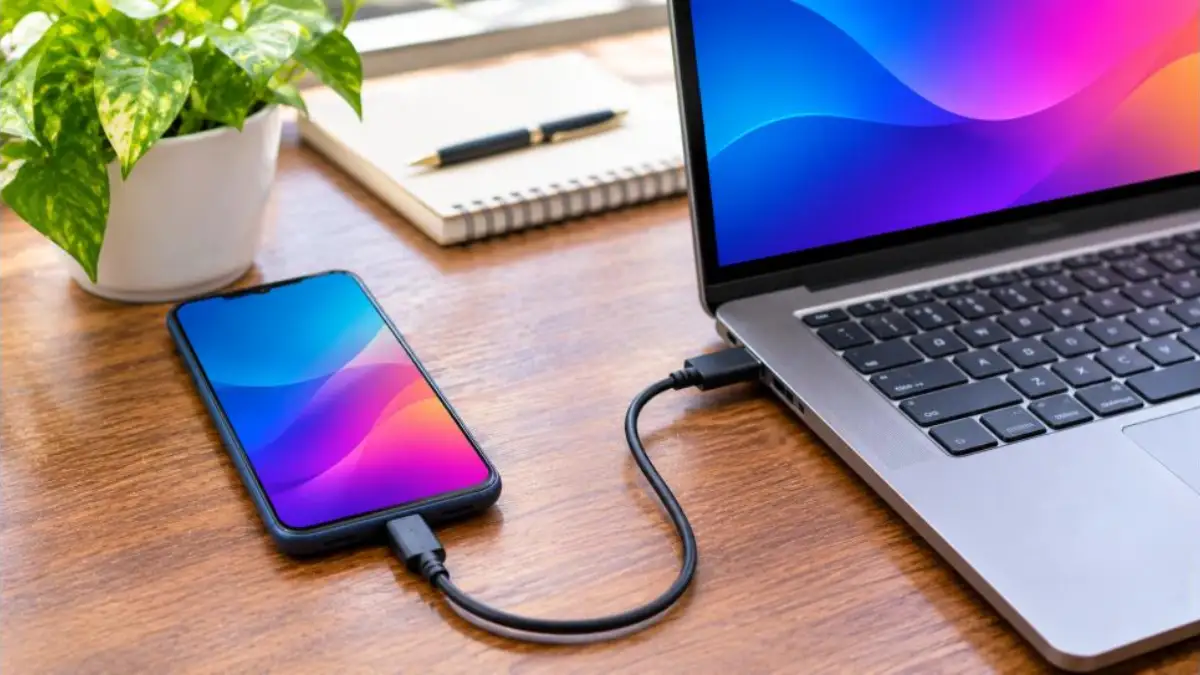
If Wi-Fi hotspot still fails, connect your phone to the laptop with a USB cable and turn on USB tethering. This is often faster and more stable, and it charges your phone at the same time. Bluetooth tethering is slower but useful as a backup.
14. Contact Your Mobile Operator
Some plans restrict tethering or need it enabled. If none of the steps work, contact your operator’s customer care or check the operator app for hotspot or tethering settings on your plan.
Why a Mobile Hotspot Not Working Is So Common
Hotspot sharing depends on several things working together: your mobile signal, data plan, phone settings, battery management and the connected device’s Wi-Fi adapter. A small problem in any one of them can break the connection. That is why a mobile hotspot not working can feel random. Understanding these links helps you troubleshoot faster: always check data first, then the phone settings, then the connected device.
How to Turn On Hotspot Correctly
On Android
- Open Settings > Network & Internet (or Connections) > Hotspot & tethering.
- Tap “Wi-Fi hotspot” and set a network name and strong password.
- Choose the security type (WPA2 or WPA3) and band (2.4 GHz or 5 GHz).
- Turn on the hotspot and connect your other device.
On iPhone
- Open Settings > Personal Hotspot.
- Turn on “Allow Others to Join”.
- Note or change the Wi-Fi password.
- Turn on “Maximise Compatibility” if older devices cannot find it.
- Keep the Personal Hotspot screen open while connecting a new device.
Menu names vary by brand and software version, so search for “hotspot” in Settings if you cannot find it.
Why Is My Hotspot So Slow?
- Weak signal: move closer to a window or an area with better network coverage.
- Network congestion: speeds drop at busy times or crowded places.
- Too many devices: each connected device shares the bandwidth.
- Background updates: laptops may download large updates when connected; set the hotspot as a metered connection on Windows.
- Distance: keep the phone close to the connected device, especially on 5 GHz.
- Heat: phones may slow down when hot; avoid direct sunlight and remove thick cases while sharing.
Save Data When Using Hotspot
Laptops use far more data than phones. To avoid finishing your daily data quickly:
- On Windows, set the hotspot network as “Metered connection” in Wi-Fi properties.
- Pause cloud sync apps like OneDrive or Google Drive.
- Lower video quality in streaming and video call apps.
- Disable automatic app updates temporarily.
- Monitor data usage in your phone settings.
Security Tips for Mobile Hotspot
- Always use a strong password with letters, numbers and symbols.
- Use WPA2 or WPA3 security, not an open network.
- Turn off the hotspot when not in use.
- Check the list of connected devices and remove unknown ones.
- Do not share your hotspot password publicly.
An unsecured hotspot can let strangers use your data or even attempt to access your devices. For more phone security tips, read our guide on what to do if your WhatsApp account is hacked.
Mobile Hotspot Not Working on Specific Brands
Samsung
On Samsung phones, go to Settings > Connections > Mobile Hotspot and Tethering. If the mobile hotspot not working on a Samsung phone, check “Configure” for the band and security, and look for “Auto hotspot” or “Turn off when no device connected” options. Also check Device Care > Battery settings for restrictions.
Xiaomi, Redmi and POCO
Open Settings > Connection & sharing > Portable hotspot. Battery saver and app restrictions in these phones can stop the hotspot in the background. Disable battery saver and set “No restrictions” for system network services if available.
Realme, OPPO and OnePlus
Look under Settings > Connection & sharing or Mobile network > Personal hotspot. Check the “Auto turn off” option and the maximum number of connections.
Vivo and iQOO
Search “hotspot” in Settings. If the mobile hotspot not working after an update, reset network settings and set up the hotspot again.
iPhone
If the Personal Hotspot option is missing, check that mobile data is on and that your carrier supports it. Go to Settings > Mobile Service > Mobile Data Network and confirm the Personal Hotspot APN if visible. Restarting and updating carrier settings often solves the issue.
Mobile Hotspot Not Working With Specific Devices
| Device | Tip |
| Windows laptop | Update Wi-Fi driver; forget and reconnect; disable power saving for the adapter |
| MacBook | Forget network; turn Wi-Fi off and on; check Instant Hotspot with iPhone |
| Smart TV | Use 2.4 GHz; keep phone close to the TV |
| Tablet | Restart tablet; check airplane mode is off |
| Another phone | Turn off Wi-Fi saver features; forget and reconnect |
Mobile Hotspot Not Working: Quick Checklist
- Is mobile data working on the phone itself?
- Is your data pack active with remaining data?
- Have you restarted both devices?
- Is the hotspot on 2.4 GHz for older devices?
- Is battery saver off?
- Is the password correct?
- Are APN and network settings reset if needed?
- Is the phone software up to date?
- Have you tried USB tethering?
Most people solve a mobile hotspot not working problem within the first five checks.
Mobile Hotspot Not Working After an Update
Sometimes a mobile hotspot not working issue starts right after a system update. New software may reset network settings, change battery optimisation rules or introduce a bug. Try resetting network settings, re-creating the hotspot with a new name and password, and checking for a follow-up update. If the issue affects many users of the same phone model, the manufacturer usually releases a fix quickly.
Mobile Hotspot Not Working in Rural Areas
In villages and hilly areas, the main issue is often weak 4G or 5G signal rather than the hotspot feature. Your phone may show a signal, but data speed may be very low. Place the phone near a window or at a higher spot in the house, and keep the connected device nearby. Switching the network mode between 5G and 4G in mobile network settings can sometimes give more stable speeds. If coverage is consistently poor, consider an operator with better coverage in your area or a fixed broadband connection such as fibre.
Example: Fixing a Student’s Hotspot Problem
Meera, a college student in Palakkad, used her phone’s hotspot for online classes on her laptop. One day, her laptop could see the hotspot but showed “No internet”. Her phone itself could open websites. She restarted both devices without success. Then she noticed that her laptop had downloaded a large Windows update and her daily data limit was nearly finished, so the operator had reduced her speed. She set the hotspot as a metered connection on Windows, paused updates and bought a small data add-on. The mobile hotspot not working problem disappeared, and she now monitors data usage before classes.
Hotspot vs Wi-Fi Router vs Portable Dongle
| Option | Pros | Cons |
| Phone hotspot | No extra device; instant setup | Drains battery; heats phone; limited by phone data |
| Portable 4G/5G dongle or MiFi | Dedicated device; frees your phone | Extra cost and separate data plan |
| Home broadband with Wi-Fi router | Fast, stable, high data limits | Fixed location; installation needed |
If you rely on your phone’s hotspot every day for work or classes, and you often face a mobile hotspot not working or slow speed, a dedicated dongle or home broadband may save time and frustration in the long run.
Advanced Fixes for Tech-Savvy Users
- Change the hotspot channel or security type: some phones allow WPA2/WPA3 selection; older devices may need WPA2.
- Disable private DNS temporarily: custom DNS settings can sometimes interfere with tethering.
- Clear cache of network apps: on some Android phones, clearing system app data for tethering services can help.
- Check VPN apps: an active VPN on the phone or laptop may block sharing; turn it off and test.
Use these steps only if the basic fixes do not solve your mobile hotspot not working issue, and avoid changing settings you do not understand.
Keep Your Phone Cool While Sharing Internet
Sharing internet for long periods makes the phone work hard, using the modem, Wi-Fi radio and processor at the same time. This generates heat, and when phones get too hot they reduce performance or turn off features automatically. Place the phone on a hard surface in a ventilated spot, remove thick covers, and avoid using heavy apps or games on the phone while it is sharing.
If you need to charge while sharing, use the original or a good-quality charger. Fast charging plus hotspot can make some phones very warm, so a slower charger may be better during long sessions. Taking short breaks also helps the phone cool down and keeps the connection more stable.
These small habits protect your battery health over time and reduce the chances of sudden disconnections in the middle of an important call or class.
For official step-by-step instructions, see the Android hotspot and tethering help page and the Apple Personal Hotspot support guide.
Frequently Asked Questions
Why is my mobile hotspot not working but data works on my phone?
This usually points to hotspot settings, band compatibility, device limits, APN or tethering restrictions on your plan. Restart, switch to 2.4 GHz, reset network settings and check with your operator.
Why does my laptop show “No internet” on hotspot?
Check that mobile data is active and not exhausted, reset APN, forget and reconnect on the laptop, and update the laptop’s Wi-Fi driver.
How can I make my hotspot faster?
Improve signal by moving to a better location, reduce the number of connected devices, use 5 GHz when close by, and stop background downloads on connected devices.
Does using a hotspot damage the phone battery?
Hotspot use drains the battery faster and can heat the phone. Keep the phone charging and in a cool place during long sessions.
Is USB tethering better than Wi-Fi hotspot?
USB tethering is often more stable and charges the phone, but it works only with one device. Wi-Fi hotspot can share with several devices.
Can my operator block hotspot?
Some plans have hotspot limits or restrictions. Check your plan details in the operator app or contact customer care.
Conclusion
A mobile hotspot not working problem is usually caused by simple issues like disabled data, battery saver, band settings, wrong passwords or network glitches. Start with quick fixes like restarting and toggling airplane mode, then check settings, reset networks and update software. Use USB tethering as a reliable backup and secure your hotspot with a strong password. With these steps, you can fix a mobile hotspot not working on Android or iPhone and stay connected wherever you are. For more phone tips, read how to find a lost phone and keep your device safe.