Two-factor authentication (2FA) is one of the simplest and most powerful ways to protect your online accounts. Even if someone steals or guesses your password, they cannot log in without the second factor, such as a code on your phone or a fingerprint. With phishing, data leaks and account takeovers increasing every year, turning on two-factor authentication for your email, WhatsApp, social media and banking apps is no longer optional.
This guide explains what two-factor authentication is, the different types, how to enable it on Gmail, WhatsApp, Instagram, Facebook and other popular services, how to use authenticator apps and passkeys, and what to do if you lose access to your second factor.
What Is Two-Factor Authentication?
Two-factor authentication adds a second check when you sign in. Instead of using only something you know (your password), you also use something you have (your phone or a security key) or something you are (your fingerprint or face). This combination makes it much harder for attackers to break into your account.
| Factor Type | Examples |
| Something you know | Password, PIN |
| Something you have | Phone with OTP or authenticator app, hardware security key |
| Something you are | Fingerprint, face recognition |
Why You Need Two-Factor Authentication
- Stops password theft attacks: stolen passwords alone are not enough to log in.
- Protects against data leaks: if a website you used is hacked and your password leaks, 2FA still protects you.
- Reduces phishing damage: many phishing attempts fail when a second factor is required.
- Alerts you to suspicious logins: unexpected 2FA prompts tell you someone is trying to access your account.
- Protects linked accounts: your email is often the key to resetting other accounts, so securing it protects everything.
Types of Two-Factor Authentication
| Method | How It Works | Security Level |
| SMS OTP | Code sent by text message | Better than nothing, but vulnerable to SIM swap |
| Email code | Code sent to your email | Depends on email security |
| Authenticator app | App generates time-based codes (TOTP) | Strong and works offline |
| Push notification | Approve login on a trusted device | Strong, but watch out for fatigue attacks |
| Passkeys | Sign in with fingerprint/face on your device | Very strong and phishing-resistant |
| Hardware security key | Physical USB/NFC key | Strongest for high-risk users |
For most people, an authenticator app or passkeys offer the best balance of security and convenience.
How to Enable Two-Factor Authentication on Popular Services
Google / Gmail
- Open your Google Account and go to the “Security” section.
- Select “2-Step Verification” and click “Get started”.
- Verify your phone number and choose your second step: Google prompts, authenticator app, passkeys or security key.
- Save backup codes in a safe place.
Since Gmail controls password resets for many other accounts, enabling two-factor authentication on Google should be your first priority.
- Open WhatsApp and go to Settings > Account > Two-step verification.
- Tap “Turn on” and create a six-digit PIN.
- Add an email address to help reset the PIN if you forget it.
WhatsApp’s two-step verification stops attackers from registering your number on another phone. Read our guide on what to do if your WhatsApp account is hacked.
- Go to your profile, open the menu and select Accounts Centre.
- Choose “Password and security” > “Two-factor authentication”.
- Select your account and choose an authenticator app, SMS or WhatsApp as the method.
Open Settings & privacy > Accounts Centre > Password and security > Two-factor authentication, select your account and follow the steps. An authenticator app is more secure than SMS.
Microsoft / Outlook
Sign in to your Microsoft account, open Security > Advanced security options and turn on two-step verification. The Microsoft Authenticator app can provide codes or push approvals.
Apple ID
Most modern Apple accounts use two-factor authentication by default. Check Settings > your name > Sign-In & Security on iPhone to confirm it is on and that your trusted phone number is correct.
How to Use an Authenticator App
Authenticator apps generate a new six-digit code every 30 seconds. Popular choices include Google Authenticator, Microsoft Authenticator and other reputable apps. To set up:
- Install an authenticator app from the official app store.
- In your account’s two-factor authentication settings, choose “Authenticator app”.
- Scan the QR code shown on screen with the app.
- Enter the six-digit code from the app to confirm.
- Save backup codes in a safe place.
Some apps allow encrypted cloud backup of your codes, which helps if you change phones. Turn this on if available and protect it with a strong password.
Passkeys: The Next Step Beyond Passwords
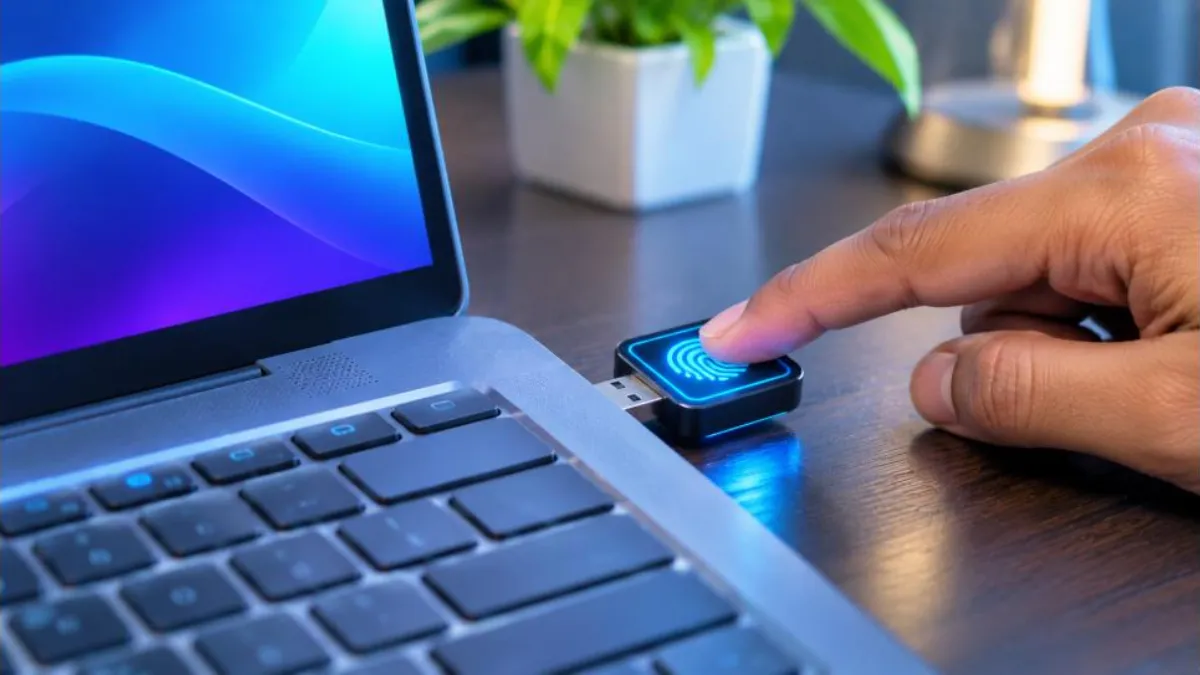
Passkeys let you sign in using your phone or computer’s screen lock (fingerprint, face or PIN) instead of typing a password. They are based on cryptographic keys stored on your device and are resistant to phishing, because they only work on the genuine website. Google, Apple, Microsoft and many other services now support passkeys. When available, create a passkey for your important accounts; it can work alongside or instead of traditional two-factor authentication.
Backup Codes and Recovery Options
The biggest worry with two-factor authentication is losing access to your phone. Prepare in advance:
- Save backup codes: most services provide one-time backup codes. Print them or store them in a secure password manager.
- Add a backup phone number: a family member’s number or a second SIM.
- Keep recovery email updated: use an email you can always access.
- Register more than one method: for example, authenticator app plus passkey.
- Use cloud backup in authenticator apps where available.
What to Do If You Lose Your Phone
- Use a backup code or alternative method to sign in.
- Remove the lost phone from trusted devices in each account’s security settings.
- Set up two-factor authentication on your new phone.
- Contact your mobile operator to block the SIM and get a replacement.
- Use device tracking to lock or erase the lost phone; see our guide to find a lost phone.
Common Two-Factor Authentication Scams
Attackers know that two-factor authentication blocks them, so they try to trick users into handing over codes:
- “Share the OTP” calls: fraudsters pretend to be bank staff, delivery agents or customer care and ask for the code. Never share 2FA codes with anyone.
- Fake login pages: phishing sites ask for both password and OTP. Always check the website address.
- Push fatigue: repeated approval prompts are sent hoping you tap “Approve”. If you did not try to sign in, deny and change your password.
- SIM swap fraud: criminals try to get a duplicate SIM in your name. Prefer authenticator apps or passkeys over SMS for critical accounts.
Spam and phishing emails are a common entry point for these scams. Learn how to stop spam emails and keep your inbox safe.
Two-Factor Authentication for Banking and UPI
Indian banks and UPI apps already use multiple factors: your registered device, SIM binding, MPIN or UPI PIN and OTPs for many transactions. RBI rules require additional authentication for many digital payments. Still, you can strengthen security by setting app locks, enabling biometric login, not sharing your UPI PIN and checking that your registered mobile number is correct with your bank. Treat any request for your OTP or PIN as a scam.
Best Practices for Two-Factor Authentication
- Enable two-factor authentication on email first, then on social media, cloud storage, shopping and work accounts.
- Prefer authenticator apps, passkeys or security keys over SMS where possible.
- Use a unique, strong password for each account, ideally stored in a password manager.
- Keep backup codes offline in a safe place.
- Review trusted devices and active sessions regularly.
- Never approve login prompts you did not start.
- Update your recovery phone and email whenever they change.
Two-Factor Authentication for Families and Seniors
Older family members are often targeted by scammers. Help them set up two-factor authentication on WhatsApp and email, explain that they should never share codes, and note backup codes for them. Simple steps like a WhatsApp two-step PIN can prevent account takeovers that are used to scam their contacts. Encourage them to call you before acting on any message asking for codes or payments.
Two-Factor Authentication for Small Businesses
Small businesses rely on email, social media pages, payment gateways and cloud storage. A single compromised account can lead to lost customers or money. Turn on two-factor authentication for all business accounts, use shared password managers for team access instead of sharing passwords on chat, and remove access for former employees immediately.
Example: How 2FA Saved an Account
Rahul, a college student in Kochi, reused the same password on several websites. When one shopping site suffered a data leak, attackers tried to log in to his Gmail with the leaked password. Because he had turned on two-factor authentication with Google prompts, he received an unexpected sign-in request on his phone. He denied it, changed his password and enabled a passkey. His account stayed safe. Without two-factor authentication, the attackers could have reset passwords for his other accounts through his email.
Using a Password Manager With 2FA
Strong, unique passwords and a second factor work best together. A password manager creates and stores complex passwords for every site, so you do not need to remember them. Many password managers also autofill only on the correct website, which helps protect against phishing pages. Some even store authenticator codes, though security experts often suggest keeping codes in a separate app for critical accounts. Choose a reputable password manager, protect it with a long master password and turn on its own second factor.
How to Check If Your Accounts Were Leaked
Data breaches happen regularly, and your email or phone number may appear in leaked databases. Reputable breach-notification services let you check whether your email has been exposed. If it has, change the password for that account and any account where you reused it, and make sure 2FA is turned on. Google’s Password Checkup and similar tools in browsers can also warn you about compromised passwords saved in your browser.
Security Habits Beyond 2FA
- Keep your phone and computer updated with the latest security patches.
- Install apps only from official app stores.
- Lock your phone with a strong PIN, pattern or biometrics.
- Avoid logging in to important accounts on public computers.
- Be careful with public Wi-Fi; avoid sensitive transactions on open networks.
- Regularly review app permissions and remove apps you no longer use.
- Back up your important data to a secure location.
These habits, combined with a second login factor, form a strong shield around your digital identity.
Teaching Children About Account Safety
Children and teenagers often use gaming, social media and school accounts. Teach them never to share passwords or codes with friends, to recognise suspicious messages and to tell a parent if something feels wrong. Set up parental controls and second factors on their important accounts, and keep recovery options linked to a parent’s email or phone where appropriate.
2FA Setup Priority List
| Priority | Account Type | Why |
| 1 | Primary email | Controls password resets for other accounts |
| 2 | WhatsApp and phone account | Used to scam your contacts if hijacked |
| 3 | Banking and payment apps | Direct financial risk |
| 4 | Cloud storage and photos | Personal documents and memories |
| 5 | Social media | Reputation and impersonation risk |
| 6 | Shopping and other accounts | Saved cards and addresses |
Is SMS-Based 2FA Safe Enough?
SMS codes are better than having no second factor at all, and for many services they are the only option. However, SMS can be intercepted through SIM swap fraud or malicious apps that read messages. For your most important accounts, choose an authenticator app, passkey or security key when available. Also protect your SIM with a SIM PIN and be cautious if your phone suddenly loses network for no reason, which can be a sign of a SIM swap attempt; contact your operator immediately in such cases.
Common Problems and Fixes
| Problem | Fix |
| Authenticator codes not accepted | Turn on automatic date and time on your phone; time mismatch breaks codes |
| Not receiving SMS codes | Check signal, DND settings and blocked senders; try another method |
| Changed phone and lost codes | Use backup codes or account recovery; transfer authenticator accounts before resetting old phones |
| Too many login prompts | Deny them, change password and review account activity |
How Long Does Setup Take?
For most people, securing the five most important accounts takes less than 30 minutes. Set aside some quiet time, keep your phone and a notebook ready for backup codes, and work through the priority list one account at a time. Once done, the extra step during login becomes a quick habit.
Signs Your Account May Be Under Attack
Watch for warning signs such as unexpected login alerts, verification codes you did not request, password reset emails, new devices listed in your account settings, sent messages you did not write, or friends telling you they received strange messages from you. Any of these may mean someone has your password and is trying to get in.
If you notice these signs, act quickly. Change your password from a trusted device, sign out of all other sessions, review recovery email and phone numbers, check forwarding rules in your email and confirm that your second factor is still under your control. If money or sensitive data is involved, report the incident to the service provider and, in India, to the national cyber crime helpline 1930 or the official cyber crime reporting portal.
Acting within minutes can stop an attacker before they lock you out or misuse your contacts. Keep this checklist handy so that you, and your family members, know exactly what to do when something looks suspicious.
Finally, remember that security is an ongoing habit, not a one-time setup. Review your important accounts every few months, remove old devices and update recovery details so your protection stays strong.
Frequently Asked Questions
What is two-factor authentication in simple words?
It means using two different proofs to log in, usually your password plus a code or approval on your phone.
Is 2FA mandatory?
Many services make it optional, but some now require it for certain users. It is strongly recommended for all important accounts.
Which 2FA method is the safest?
Passkeys and hardware security keys are the most phishing-resistant, followed by authenticator apps. SMS is the weakest option but still better than none.
What if I lose my phone?
Use backup codes or other registered methods to sign in, remove the lost device from your accounts and set up 2FA on your new phone.
Can hackers bypass 2FA?
Mostly by tricking users into sharing codes or approving prompts. Never share codes and only enter them on the official website or app.
Does 2FA slow down login?
It adds a few seconds. Many services let you trust your personal device so you are not asked every time.
Conclusion
Turning on two-factor authentication is one of the easiest ways to protect your digital life. Start with your email and WhatsApp, then secure banking, cloud and social media accounts. Prefer authenticator apps or passkeys, save backup codes and never share verification codes with anyone. A few minutes of setup today can prevent hacked accounts, lost money and stressful recovery later. For Google’s official guide, visit the Google 2-Step Verification help page.