 by
by DigiLocker Documents Download lets you keep original digital copies of your important papers on your phone and save them as PDF whenever needed. DigiLocker is the Government of India’s official cloud wallet under the Digital India programme. Documents fetched from DigiLocker come directly from the issuing department, so they are treated as valid originals under the IT Rules. This guide explains how to sign up, fetch documents and download them step by step, even if you are using the platform for the very first time.
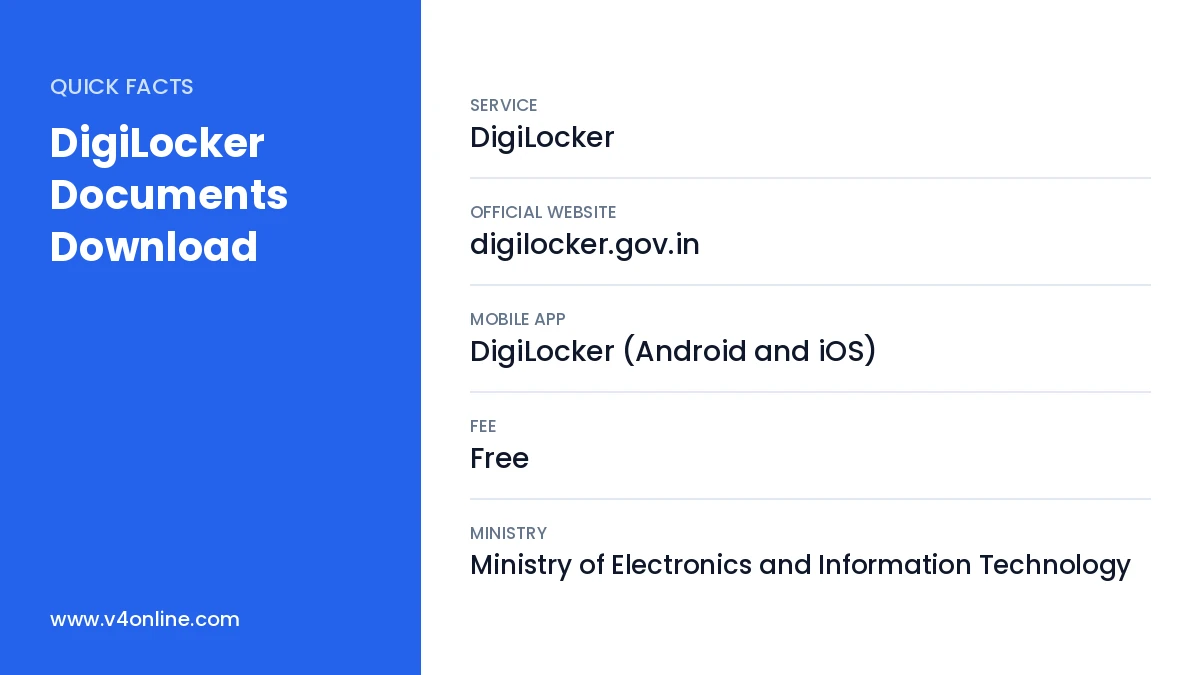
| Service | DigiLocker |
|---|---|
| Official Website | digilocker.gov.in |
| Mobile App | DigiLocker (Android and iOS) |
| Fee | Free |
| Ministry | Ministry of Electronics and Information Technology |
What Is DigiLocker?
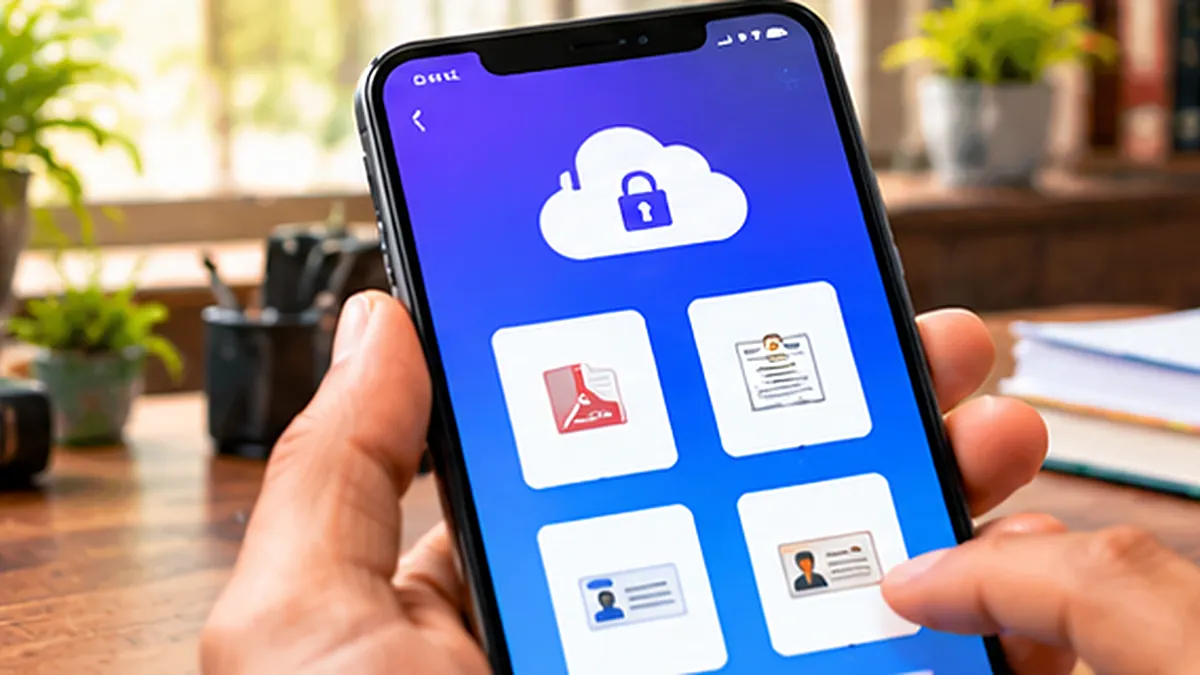
DigiLocker is a secure platform where government departments, universities and boards issue documents in electronic form. Each user gets a personal locker linked to their Aadhaar and mobile number. Inside the locker there are two kinds of documents: issued documents, which come directly from the source, and uploaded documents, which you scan and add yourself. Issued documents carry a digital signature and are accepted by many offices in place of the physical copy.
Documents Available for DigiLocker Documents Download
- Aadhaar card, PAN card and voter ID (e-EPIC).
- Driving licence and vehicle registration certificate.
- CBSE, Kerala SSLC and Plus Two marksheets and certificates.
- Vaccination certificates and insurance policies.
- Many state certificates, including Kerala e-District certificates such as income and caste.
How to Create a DigiLocker Account
Step 1: Sign Up with Mobile Number
Open digilocker.gov.in or install the DigiLocker app. Tap “Sign Up” and enter your name as in Aadhaar, date of birth, gender, mobile number and email. Verify your mobile number with the OTP received.
Step 2: Set a Security PIN
Create a six-digit security PIN. This PIN protects your locker and is needed every time you sign in. Do not share it with anyone and avoid easy numbers such as your birth year.
Step 3: Link Your Aadhaar
Enter your Aadhaar number and verify it with the OTP sent to the mobile linked with Aadhaar. Linking Aadhaar is important because most issued documents are matched with your Aadhaar details.
DigiLocker Documents Download: Step-by-Step
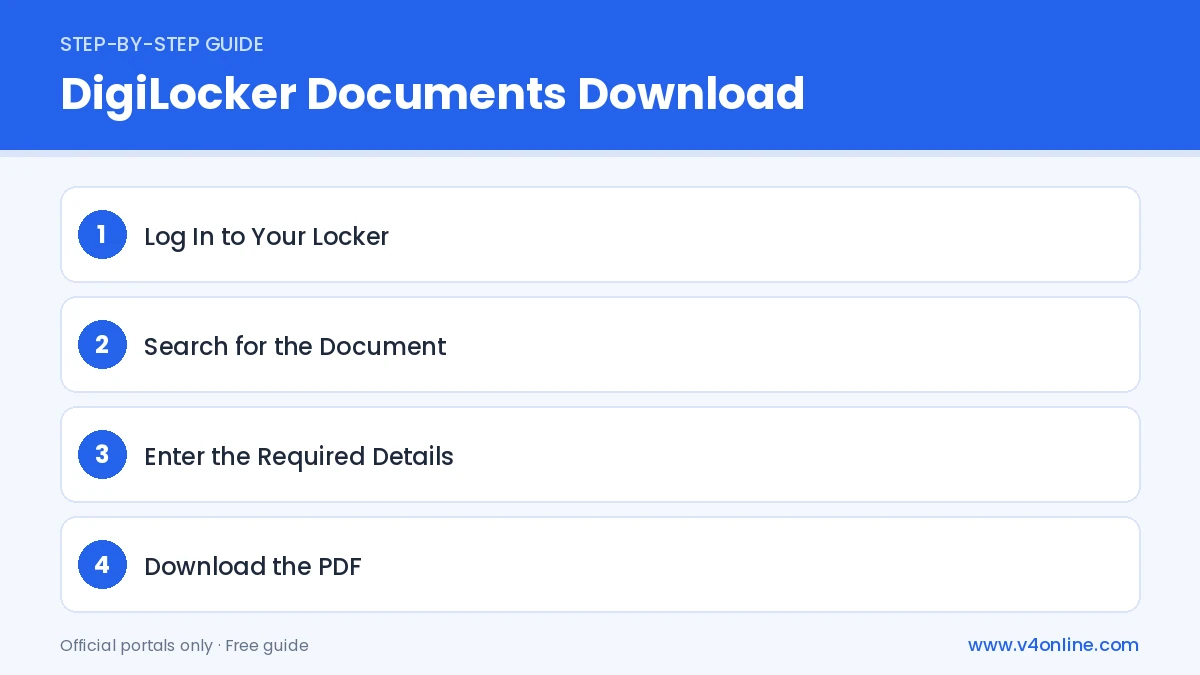
Step 1: Log In to Your Locker
Sign in using your mobile number or username, the OTP and your security PIN. The home screen shows your issued documents and a search bar for new documents.
Step 2: Search for the Document
Tap “Search Documents” or “Get More Now”. Type the name of the document or the issuing department, such as “Driving Licence” or “Kerala Board of Public Examinations”. Select the correct issuer from the results.
Step 3: Enter the Required Details
Fill in the details asked, like the licence number, roll number and year of passing, or the certificate number. Your name and date of birth are taken from Aadhaar automatically. Give consent and tap “Get Document”.
Step 4: Download the PDF
The document is added to the “Issued Documents” section. Open it and tap the download icon to save it as a PDF on your phone or computer. You can also share it directly with an organisation through the share option.
How to Share Documents After Download
After a DigiLocker Documents Download, you have two ways to share a document. You can send the saved PDF by email or messaging apps, or you can use the share option inside DigiLocker, which creates a secure time-limited link. The second method is safer because the receiver sees the verified issued copy and cannot edit it. For job applications, bank KYC and college admissions, the secure link is often accepted without any attested photocopies.
Why Use DigiLocker Instead of Paper Copies?
Paper documents can get lost, damaged by water or misplaced during travel. With DigiLocker Documents Download, you always have a legally valid copy on your phone. Traffic police accept the DigiLocker driving licence and RC, and many colleges verify marksheets directly from the platform. It also reduces the need for attested photocopies, saving time and money for both citizens and offices.
Common Problems and Solutions
If DigiLocker shows “No record found”, check the document number and year carefully, because a single wrong digit blocks the search. If the name does not match, update your Aadhaar first. When a department is not listed yet, you can scan the paper document and keep it under “Uploaded Documents”, though it will not be treated as an issued original. For digital Aadhaar, also see our guide on Aadhaar card download online.
Frequently Asked Questions
Is DigiLocker Documents Download free?
Yes. Creating an account, fetching and downloading documents are completely free.
Are DigiLocker documents legally valid?
Yes. Issued documents are treated as original documents under the Information Technology Rules.
Can I use DigiLocker without Aadhaar?
You can sign up with a mobile number, but most issued documents need Aadhaar verification.
How much storage do I get?
Every user gets free storage for uploaded documents, while issued documents do not use this space.
Can I delete a document from DigiLocker?
Yes. Uploaded documents can be deleted anytime, and issued documents can be removed and fetched again later.
Conclusion
DigiLocker Documents Download keeps your records safe and ready. DigiLocker Documents Download is the simplest way to keep your important papers safe and ready. Create an account, link Aadhaar, fetch the documents you need and save them as PDF. You can also store your digital voter card by following our voter ID download online guide, so all your IDs stay in one secure place.